> ## Documentation Index
> Fetch the complete documentation index at: https://docs.linqra.com/llms.txt
> Use this file to discover all available pages before exploring further.
# Quick Start Guide
> Get started with Linqra quickly using IntelliJ IDEA
## Project Structure
The Linqra project consists of several key components:
```bash theme={null}
Linqra/
├── .github/ # GitHub workflows and CI/CD configurations
├── .kube/ # Kubernetes and Docker configurations
├── api-gateway/ # Core API Gateway service (Java/Spring)
├── discovery-server/ # Service Discovery with Eureka (Java/Spring)
├── edge-service/ # Web Application (React)
├── keys/ # Pre-generated certificates and keystores
│ ├── eureka-keystore.jks
│ ├── eureka-truststore.jks
│ ├── gateway-keystore.jks
│ └── gateway-truststore.jks
├── docker-compose.yml # Docker Compose configuration for all services
└── ... other project files
```
### Component Overview
* **.github**: Contains GitHub-specific configurations and CI/CD workflow definitions
* **.kube**: Houses Docker and Kubernetes configurations for containerized deployment
* **api-gateway**: The core service that handles API routing, security, and gateway operations
* **discovery-server**: Eureka server for service registration and discovery
* **edge-service**: React-based web application for the user interface
* **keys**: Pre-generated certificates and keystores for secure service communication
* **docker-compose.yml**: Defines and configures all services for containerized deployment
The `keys` directory in the project root contains all necessary certificates for secure service communication. These certificates are pre-generated and ready to use.
## Running from IntelliJ IDEA
This guide will help you set up and run Linqra directly from IntelliJ IDEA.
### Prerequisites
1. IntelliJ IDEA installed
2. Java 21 or later
3. Project cloned and opened in IntelliJ
### Key Store Setup
Before running the applications, ensure your keystore and truststore files are in a designated folder. For example:
```bash theme={null}
/Users/mehmetsen/IdeaProjects/Linqra/keys/
```
Your actual path will vary depending on your project location. Make sure to adjust the paths accordingly in the following configurations.
### Discovery Server Configuration
1. Open Run/Debug Configurations in IntelliJ
2. Create a new Application configuration
3. Configure the following settings:
* Name: `DiscoveryServer`
* Main class: `org.lite.server.DiscoveryServerApplication`
* Working directory: Your project root directory
* Environment variables:
```bash theme={null}
SPRING_PROFILES_ACTIVE=dev
```
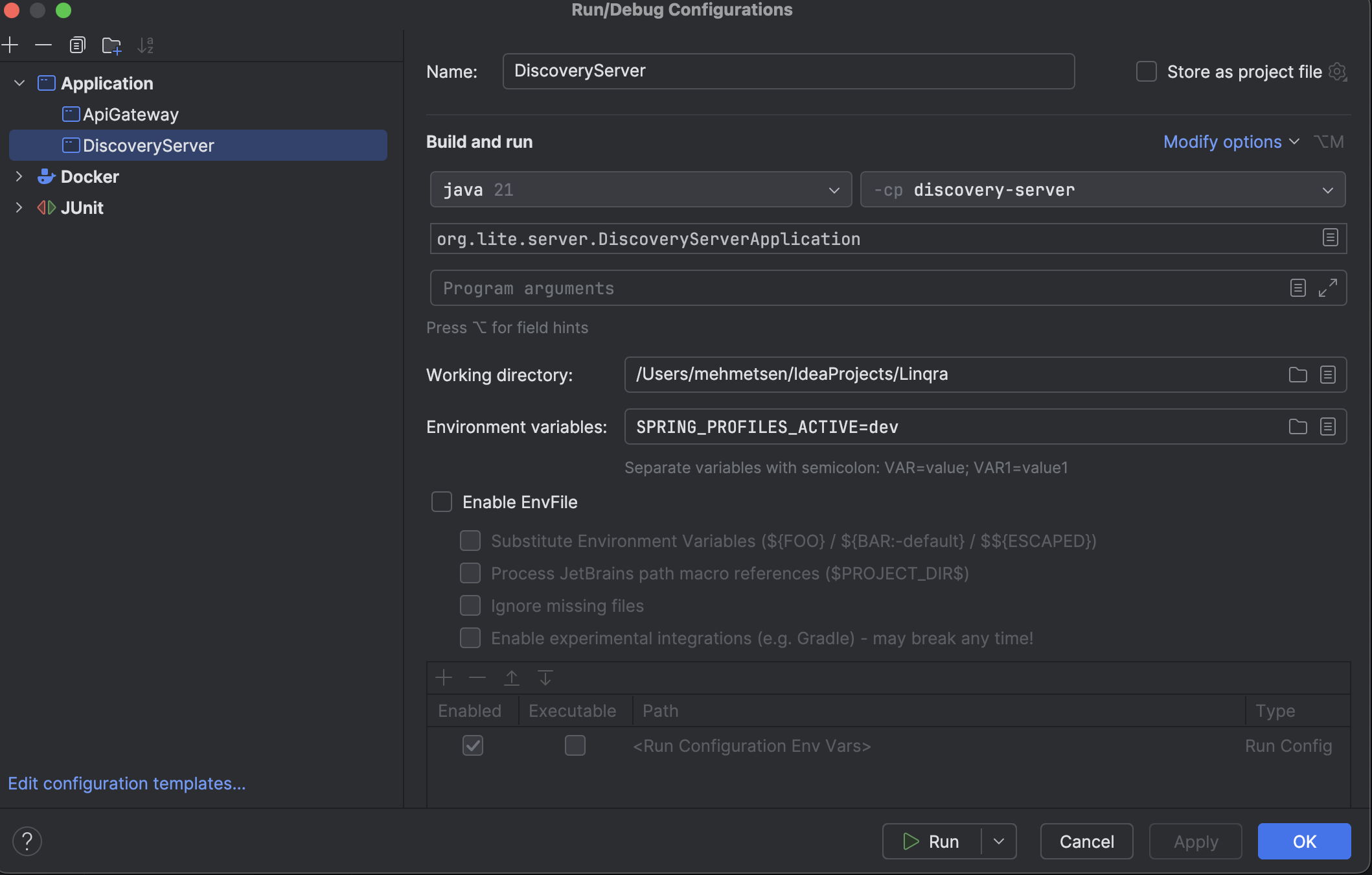 Make sure the paths in your environment variables match your actual project structure.
### API Gateway Configuration
1. Open Run/Debug Configurations in IntelliJ
2. Create a new Application configuration
3. Configure the following settings:
#### Basic Settings
* Name: `ApiGateway`
* Main class: `org.lite.gateway.ApiGatewayApplication`
* Working directory: Your project root directory
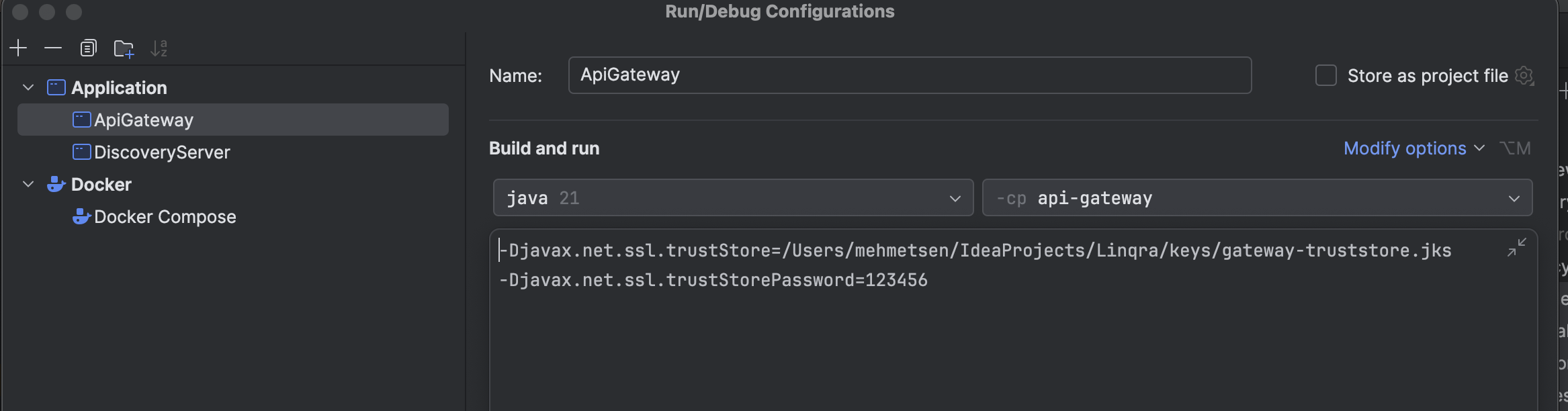
#### VM Options
```bash theme={null}
-Djavax.net.ssl.trustStore=/Users/mehmetsen/IdeaProjects/Linqra/keys/gateway-truststore.jks
-Djavax.net.ssl.trustStorePassword=123456
```
Make sure the paths in your environment variables match your actual project structure.
### API Gateway Configuration
1. Open Run/Debug Configurations in IntelliJ
2. Create a new Application configuration
3. Configure the following settings:
#### Basic Settings
* Name: `ApiGateway`
* Main class: `org.lite.gateway.ApiGatewayApplication`
* Working directory: Your project root directory
#### VM Options
```bash theme={null}
-Djavax.net.ssl.trustStore=/Users/mehmetsen/IdeaProjects/Linqra/keys/gateway-truststore.jks
-Djavax.net.ssl.trustStorePassword=123456
```
 #### Environment Variables
```bash theme={null}
SPRING_PROFILES_ACTIVE=dev
```
#### Environment Variables
```bash theme={null}
SPRING_PROFILES_ACTIVE=dev
```
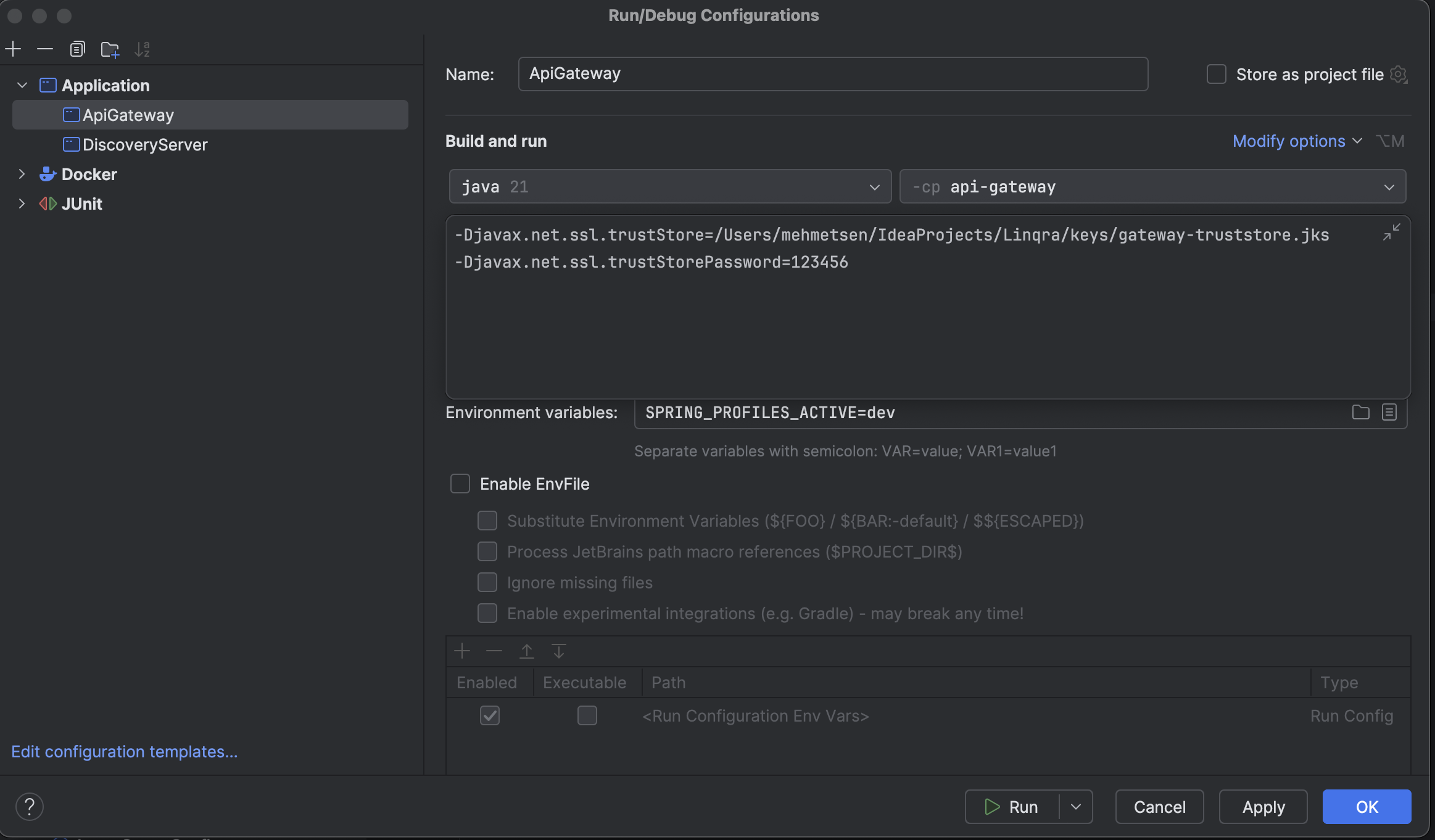 The truststore and keystore paths in VM options must point to the certificate files in your project's `keys` directory. Make sure to update the paths in the configurations to match your local project location.
For example, if your project is at `/Users/username/Projects/Linqra`, then your paths should point to:
* `/Users/username/Projects/Linqra/keys/gateway-truststore.jks`
* `/Users/username/Projects/Linqra/keys/gateway-keystore.jks`
Incorrect paths will prevent secure communication between services.
## Docker Configuration
### Setting up Docker in IntelliJ
1. Open Run/Debug Configurations in IntelliJ
2. Create a new "Docker Compose" configuration
3. Configure the following settings:
* Name: `Docker Compose`
* Compose files: `./docker-compose.yml`
* Remove orphans on `down`
The truststore and keystore paths in VM options must point to the certificate files in your project's `keys` directory. Make sure to update the paths in the configurations to match your local project location.
For example, if your project is at `/Users/username/Projects/Linqra`, then your paths should point to:
* `/Users/username/Projects/Linqra/keys/gateway-truststore.jks`
* `/Users/username/Projects/Linqra/keys/gateway-keystore.jks`
Incorrect paths will prevent secure communication between services.
## Docker Configuration
### Setting up Docker in IntelliJ
1. Open Run/Debug Configurations in IntelliJ
2. Create a new "Docker Compose" configuration
3. Configure the following settings:
* Name: `Docker Compose`
* Compose files: `./docker-compose.yml`
* Remove orphans on `down`
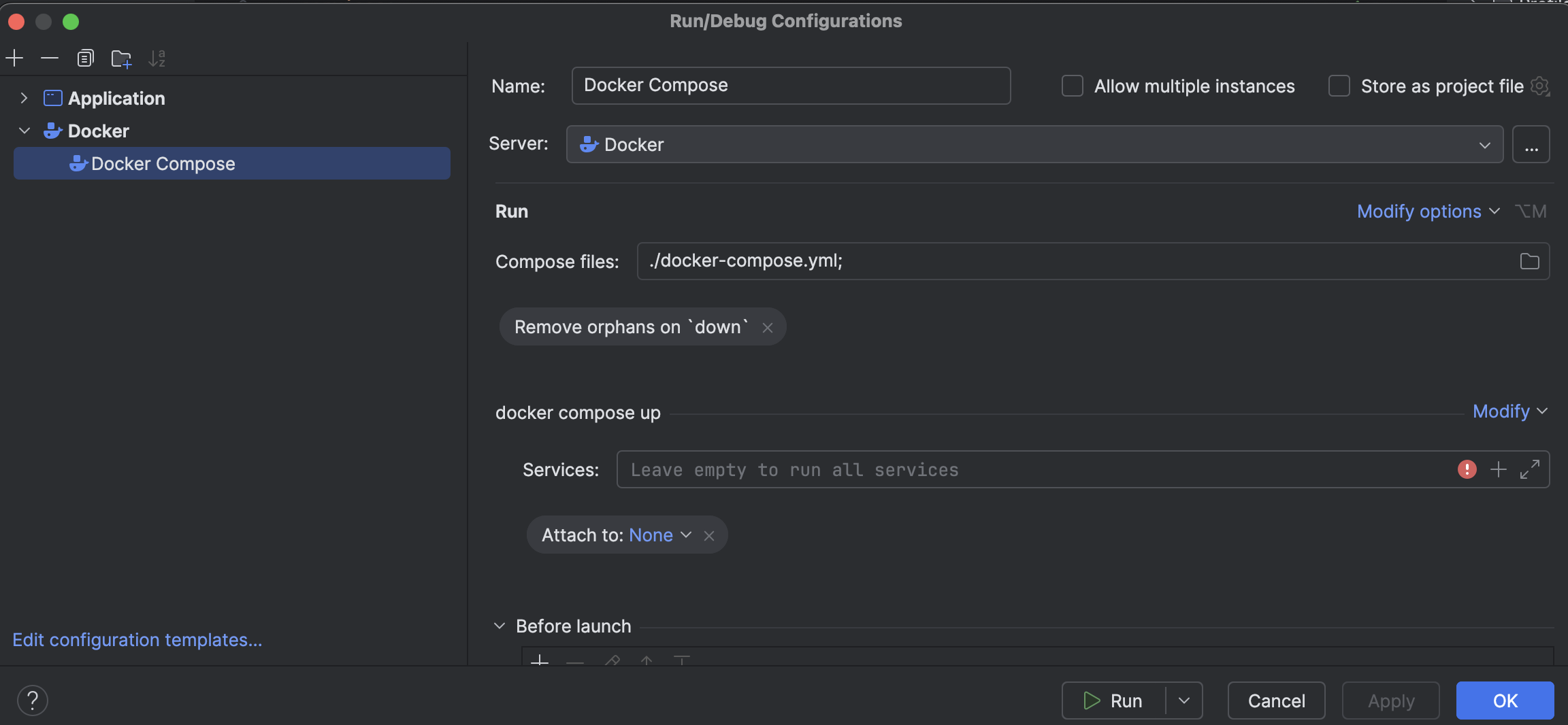 If you are behind a corporate firewall or on a restricted network, you might face issues running Docker containers. Ensure you have proper network access and necessary permissions.
### Running Docker Services
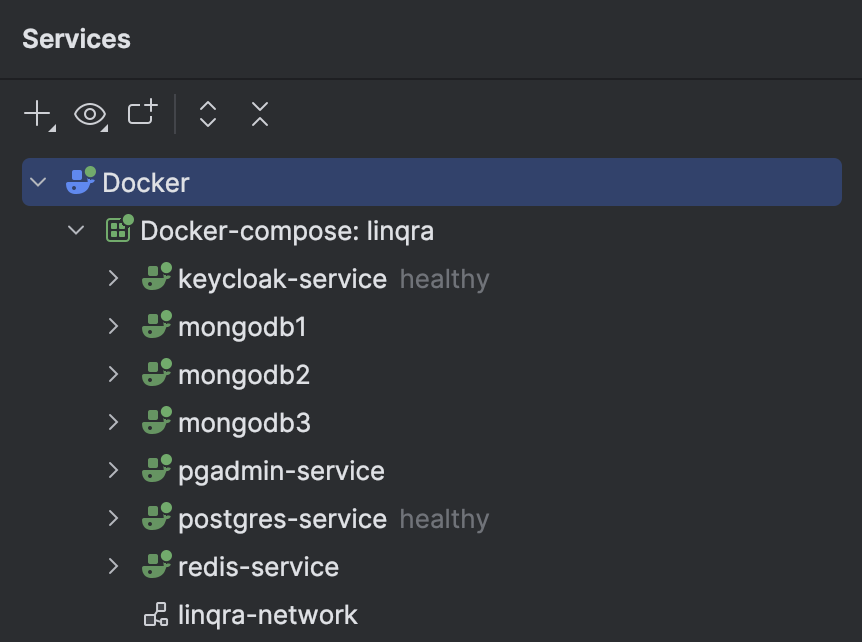
After starting the Docker Compose configuration, you should see the following services:
* keycloak-service
* mongodb1, mongodb2, mongodb3
* pgadmin-service
* postgres-service
* redis-service
If you are behind a corporate firewall or on a restricted network, you might face issues running Docker containers. Ensure you have proper network access and necessary permissions.
### Running Docker Services
After starting the Docker Compose configuration, you should see the following services:
* keycloak-service
* mongodb1, mongodb2, mongodb3
* pgadmin-service
* postgres-service
* redis-service
 ### Verifying Services
#### 1. Keycloak
* URL: `http://localhost:8281/`
* Default credentials:
* Username: `admin`
* Password: `D!pme$Gateway77f`
### Verifying Services
#### 1. Keycloak
* URL: `http://localhost:8281/`
* Default credentials:
* Username: `admin`
* Password: `D!pme$Gateway77f`
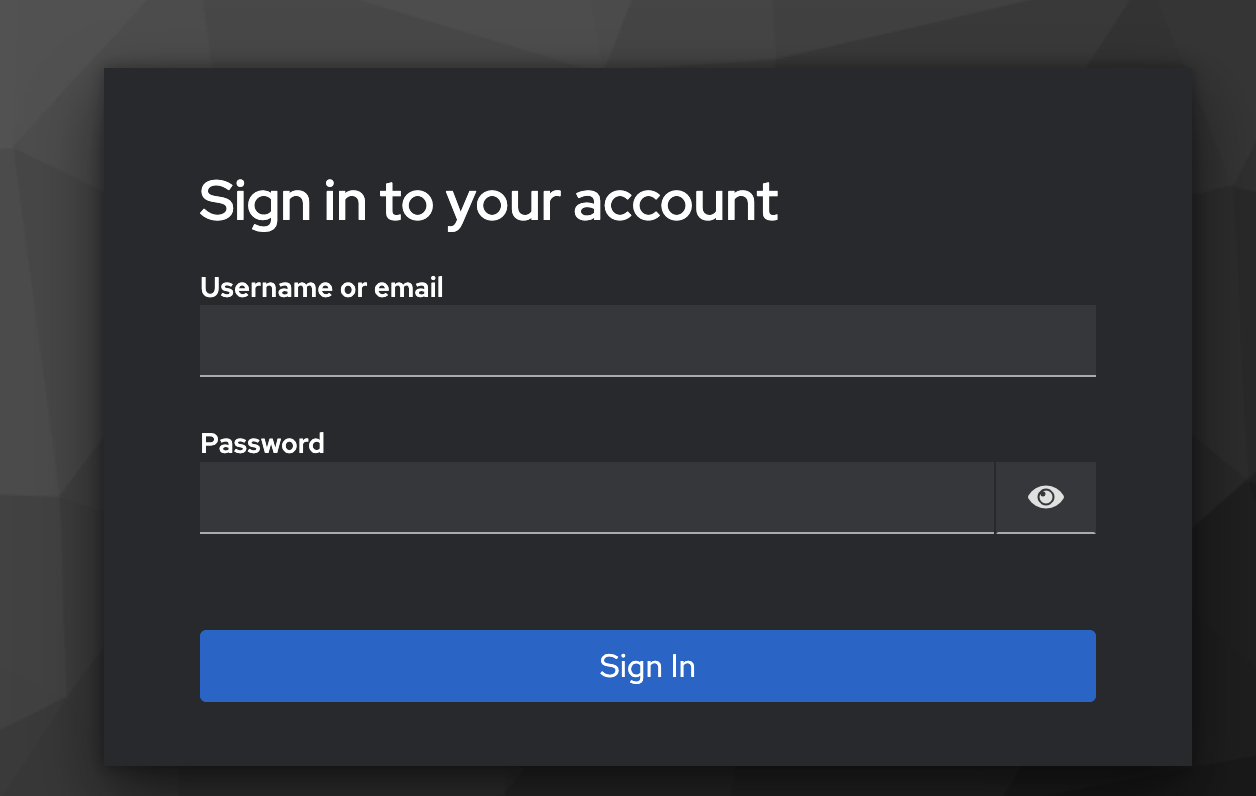 After verifying the Keycloak service is running, you'll need to configure it for use with Linqra. Follow our detailed [Keycloak Configuration Guide](/api-reference/keycloak) which includes:
1. Creating the Linqra realm
2. Setting up the gateway client
3. Configuring roles and permissions
4. Setting up client scopes
5. Configuring service accounts
The default admin credentials should only be used in development environments. For production deployments, ensure you change these credentials.
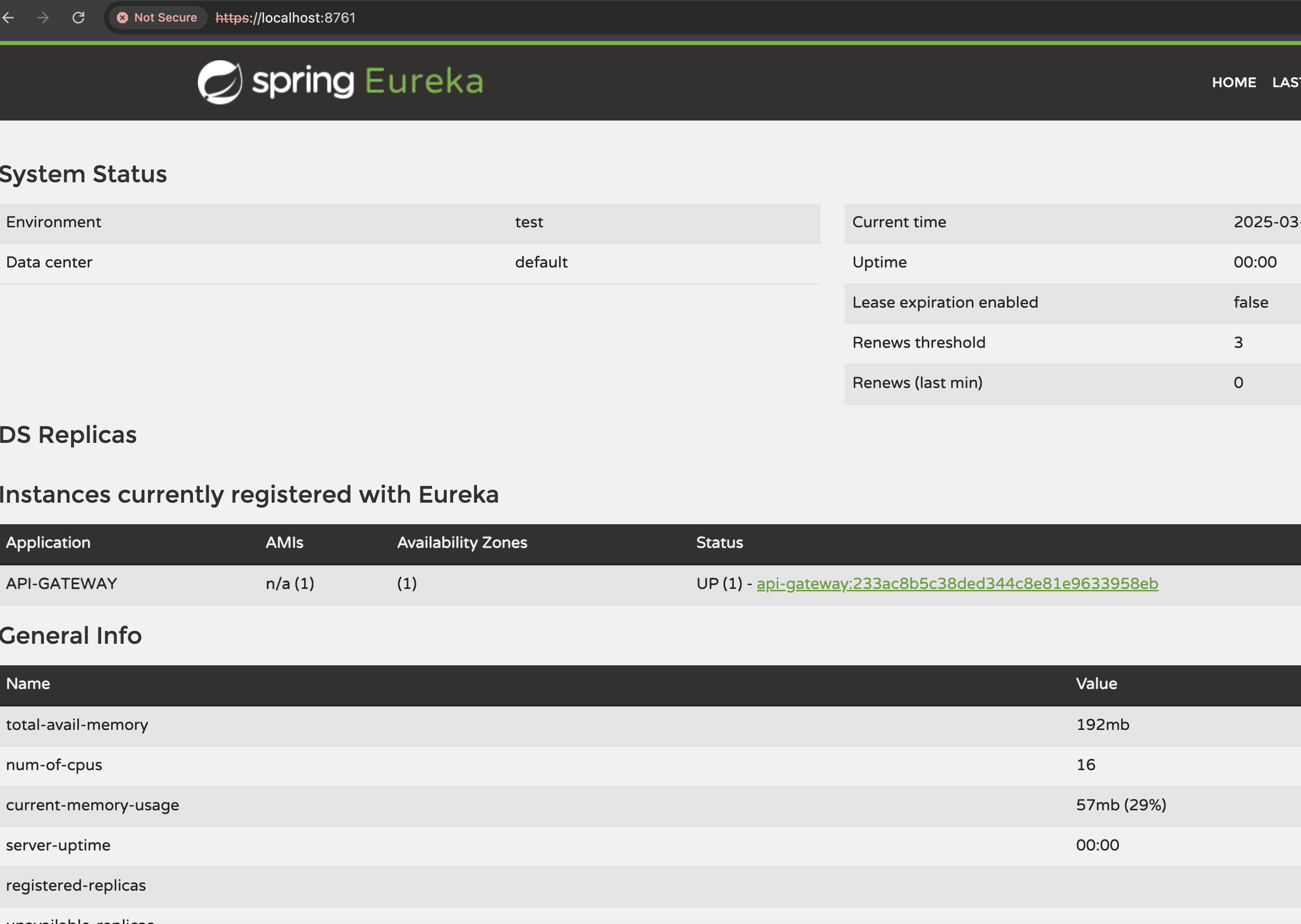
#### 2. Eureka Discovery Server
* URL: `https://localhost:8761/`
* Verify that services are registering correctly
After verifying the Keycloak service is running, you'll need to configure it for use with Linqra. Follow our detailed [Keycloak Configuration Guide](/api-reference/keycloak) which includes:
1. Creating the Linqra realm
2. Setting up the gateway client
3. Configuring roles and permissions
4. Setting up client scopes
5. Configuring service accounts
The default admin credentials should only be used in development environments. For production deployments, ensure you change these credentials.
#### 2. Eureka Discovery Server
* URL: `https://localhost:8761/`
* Verify that services are registering correctly
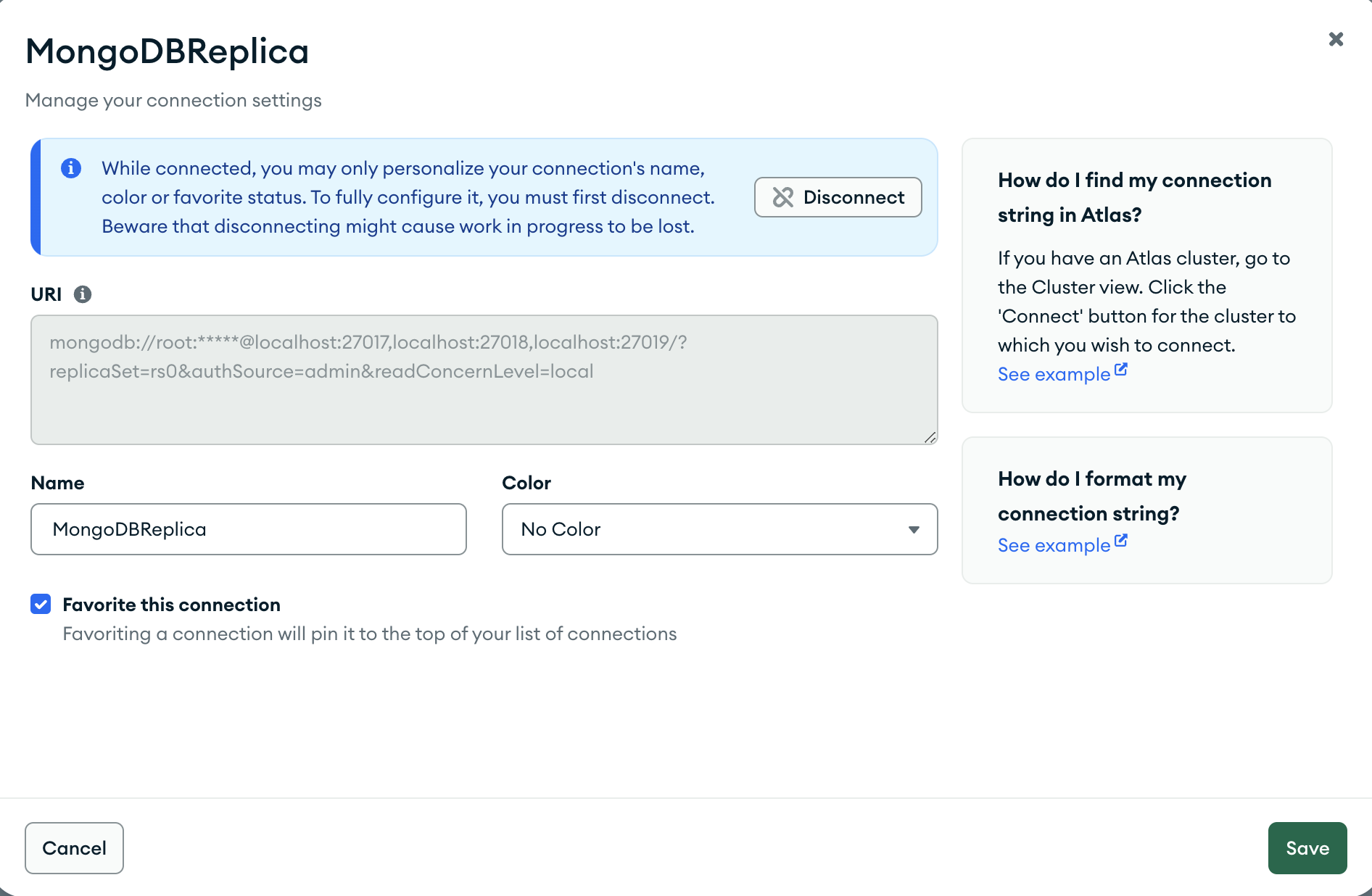
 #### 3. MongoDB Replica Set
Download MongoDB Compass and Connect using MongoDB Shell:
```bash theme={null}
mongosh "mongodb://root:mongopw@localhost:27017,localhost:27018,localhost:27019/?replicaSet=rs0&authSource=admin"
```
#### 3. MongoDB Replica Set
Download MongoDB Compass and Connect using MongoDB Shell:
```bash theme={null}
mongosh "mongodb://root:mongopw@localhost:27017,localhost:27018,localhost:27019/?replicaSet=rs0&authSource=admin"
```
 For detailed MongoDB setup and configuration, refer to the [MongoDB Configuration](/api-reference/mongodb) section.
#### 4. Redis
Verify Redis connection through Redis CLI or RedisInsight:
For detailed MongoDB setup and configuration, refer to the [MongoDB Configuration](/api-reference/mongodb) section.
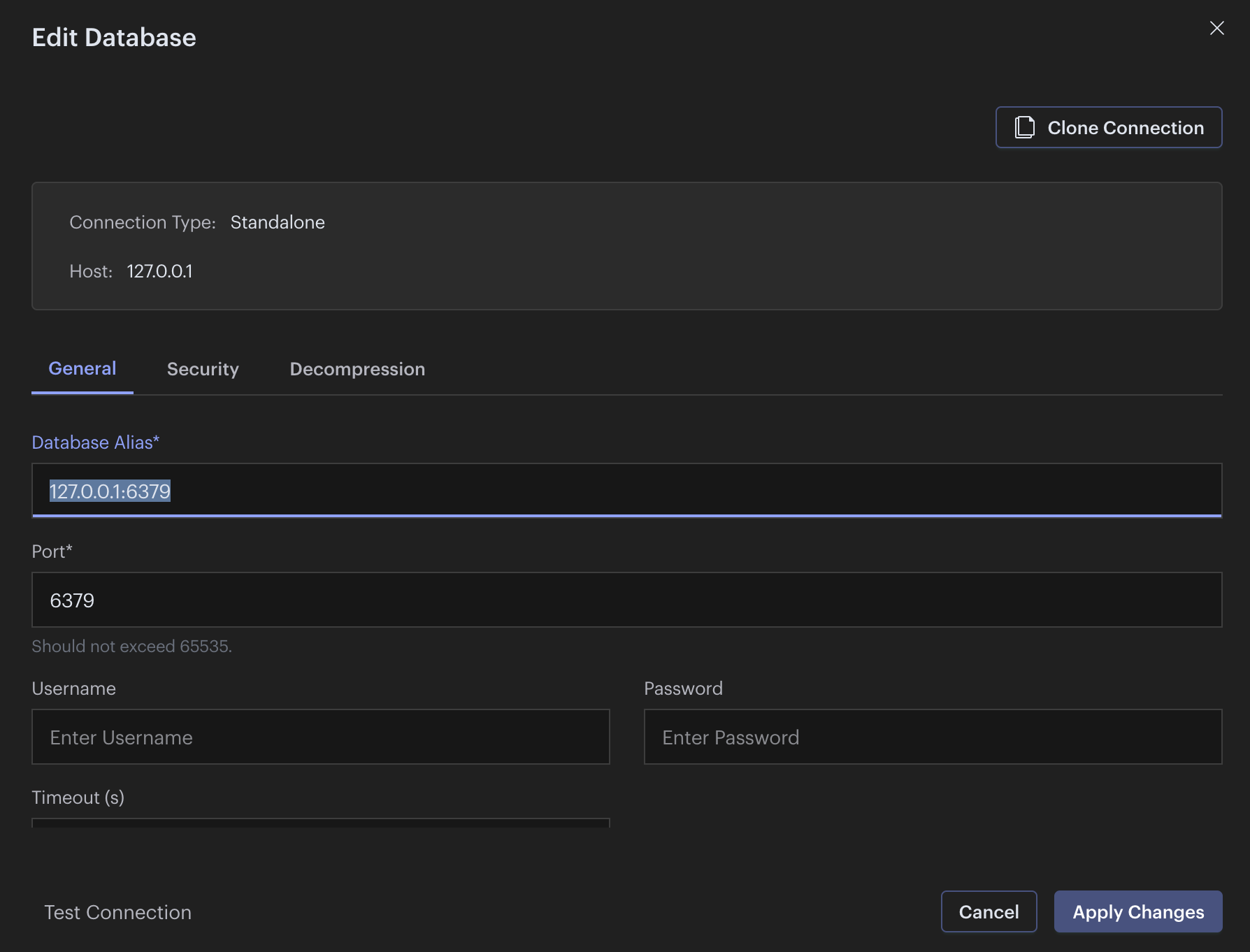
#### 4. Redis
Verify Redis connection through Redis CLI or RedisInsight:
 ### Service URLs and Ports
| Service | URL | Port |
| ------------------- | ------------------------------------------------ | ----- |
| Keycloak | [http://localhost:8281](http://localhost:8281) | 8281 |
| Eureka | [https://localhost:8761](https://localhost:8761) | 8761 |
| MongoDB Primary | localhost:27017 | 27017 |
| MongoDB Secondary 1 | localhost:27018 | 27018 |
| MongoDB Secondary 2 | localhost:27019 | 27019 |
| Redis | localhost:6379 | 6379 |
| PostgreSQL | localhost:5432 | 5432 |
| pgAdmin | [http://localhost:9090](http://localhost:9090) | 9090 |
All services are configured to run on a custom Docker network named `linqra-network` for secure inter-service communication.
## Web Application Setup
The Edge Service provides the frontend React application for Linqra. After setting up the backend services, you can set up the React web application.
### Running the Edge Service
Navigate to the edge-service directory and start the development server:
```bash theme={null}
# Navigate to the edge-service directory
cd edge-service
# Start the development server
npm run dev
```
The web application will be available at `http://localhost:3000/login`
### Service URLs and Ports
| Service | URL | Port |
| ------------------- | ------------------------------------------------ | ----- |
| Keycloak | [http://localhost:8281](http://localhost:8281) | 8281 |
| Eureka | [https://localhost:8761](https://localhost:8761) | 8761 |
| MongoDB Primary | localhost:27017 | 27017 |
| MongoDB Secondary 1 | localhost:27018 | 27018 |
| MongoDB Secondary 2 | localhost:27019 | 27019 |
| Redis | localhost:6379 | 6379 |
| PostgreSQL | localhost:5432 | 5432 |
| pgAdmin | [http://localhost:9090](http://localhost:9090) | 9090 |
All services are configured to run on a custom Docker network named `linqra-network` for secure inter-service communication.
## Web Application Setup
The Edge Service provides the frontend React application for Linqra. After setting up the backend services, you can set up the React web application.
### Running the Edge Service
Navigate to the edge-service directory and start the development server:
```bash theme={null}
# Navigate to the edge-service directory
cd edge-service
# Start the development server
npm run dev
```
The web application will be available at `http://localhost:3000/login`
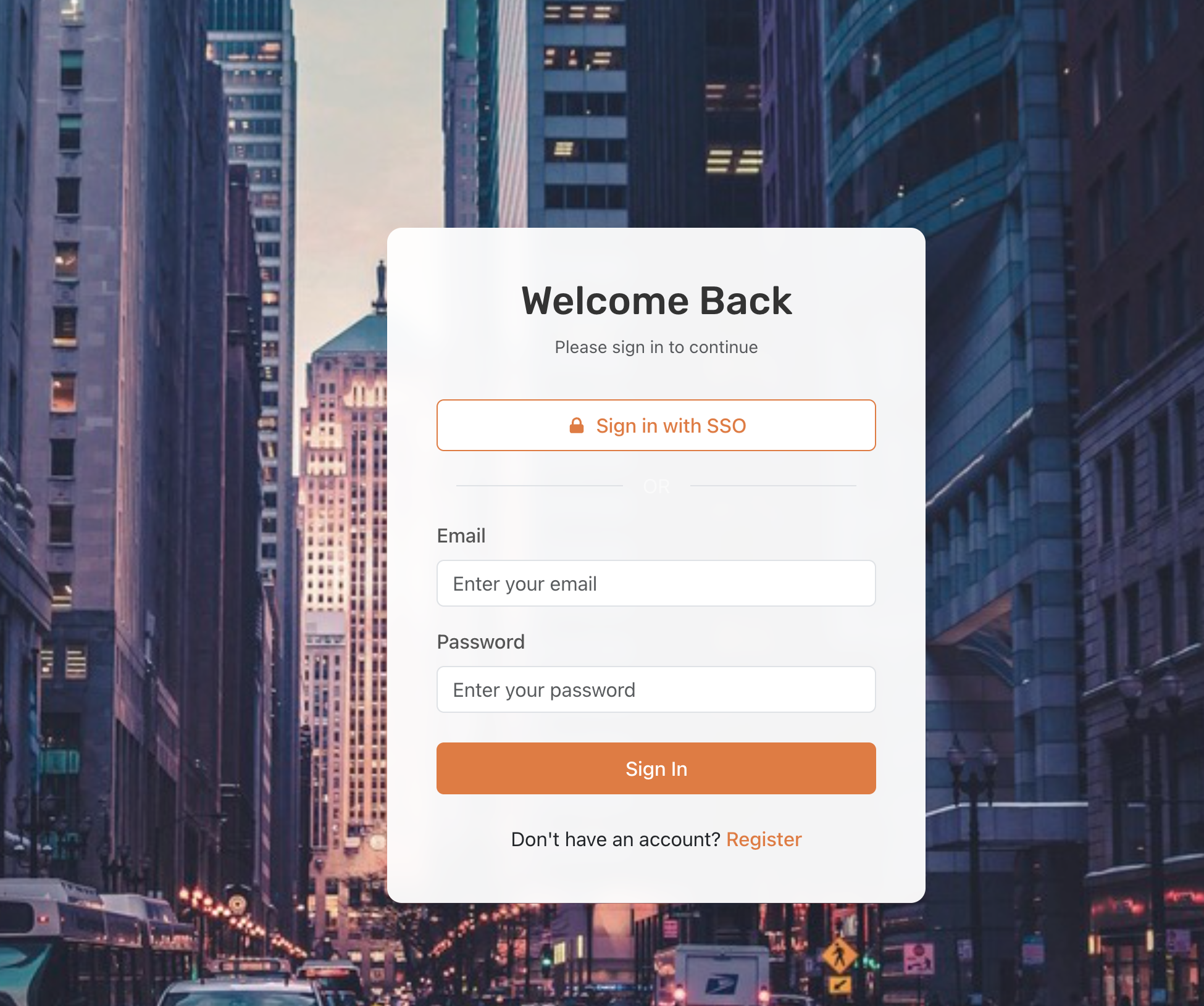 The web application is configured to connect to the local services you've already started. Make sure Keycloak, API Gateway, and other required services are running before accessing the web application.
You may need administrative privileges to run the development server on certain systems. If you encounter permission issues, try using `sudo npm run dev`.
## Next Steps
This quickstart guide covered how to set up and run the core services required for Linqra development:
1. Setting up IntelliJ configurations for Discovery Server and API Gateway
2. Running the backend infrastructure with Docker (MongoDB, Redis, Keycloak, PostgreSQL)
3. Starting the React web application (Edge Service)
### Advanced Development
For more detailed information about development workflows, client-specific applications, and advanced configuration, refer to our [Development Guide](/development).
The Development Guide includes:
* Code formatting standards
* Testing procedures
* CI/CD integration
* Client-specific configuration
* Troubleshooting common development issues
The web application is configured to connect to the local services you've already started. Make sure Keycloak, API Gateway, and other required services are running before accessing the web application.
You may need administrative privileges to run the development server on certain systems. If you encounter permission issues, try using `sudo npm run dev`.
## Next Steps
This quickstart guide covered how to set up and run the core services required for Linqra development:
1. Setting up IntelliJ configurations for Discovery Server and API Gateway
2. Running the backend infrastructure with Docker (MongoDB, Redis, Keycloak, PostgreSQL)
3. Starting the React web application (Edge Service)
### Advanced Development
For more detailed information about development workflows, client-specific applications, and advanced configuration, refer to our [Development Guide](/development).
The Development Guide includes:
* Code formatting standards
* Testing procedures
* CI/CD integration
* Client-specific configuration
* Troubleshooting common development issues